How to fix 'Unable to connect to chat server' error
When using Webphone PRO integrated with ChatBroker, you may encounter the following message on the chat panel:
⚠️ Unable to connect to chat server
This indicates that the web client could not establish a connection to the ChatBroker API or that the FOP2 user is not properly linked with the ChatBroker user record.
🧩 Possible Causes
There are two main causes for this issue:
- Incorrect API cable configuration in ChatBroker (wrong password or credentials).
- Desynchronization between the FOP2 user and the ChatBroker user.
Below we describe how to diagnose and fix each cause.
1️⃣ Verifying API Cable Configuration
If the ChatBroker API credentials are incorrect, Webphone PRO will be unable to authenticate and connect.
Follow these steps to verify and fix it:
Step 1: Check the API User Configuration
Open the ChatBroker administration interface and navigate to:
Collections → users
You will see a predefined API user named api@asternic.noemail.
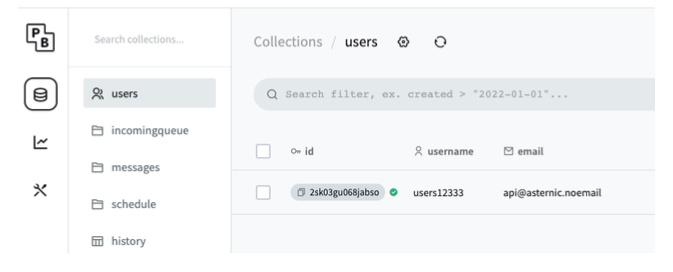
Step 2: Change the API Password
Click on the user api@asternic.noemail to edit it.
In the edit panel, do not change the email or username.
Just activate Change Password and enter a new secure password.
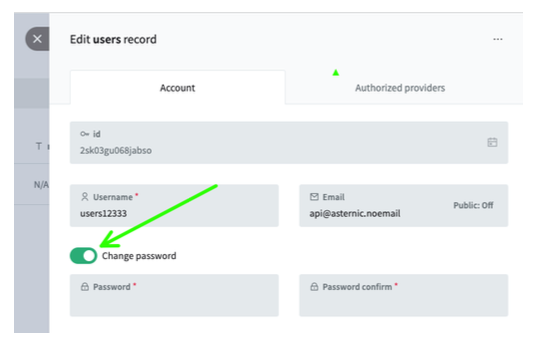
Make sure you remember or note down this password.
Step 3: Update Webphone PRO Configuration
Open FOP2 Manager (https://your.server/fop2/admin), go to Plugins, scroll down or search for Webphone PRO, click Settings and set the same password in Chatbroker API Password.
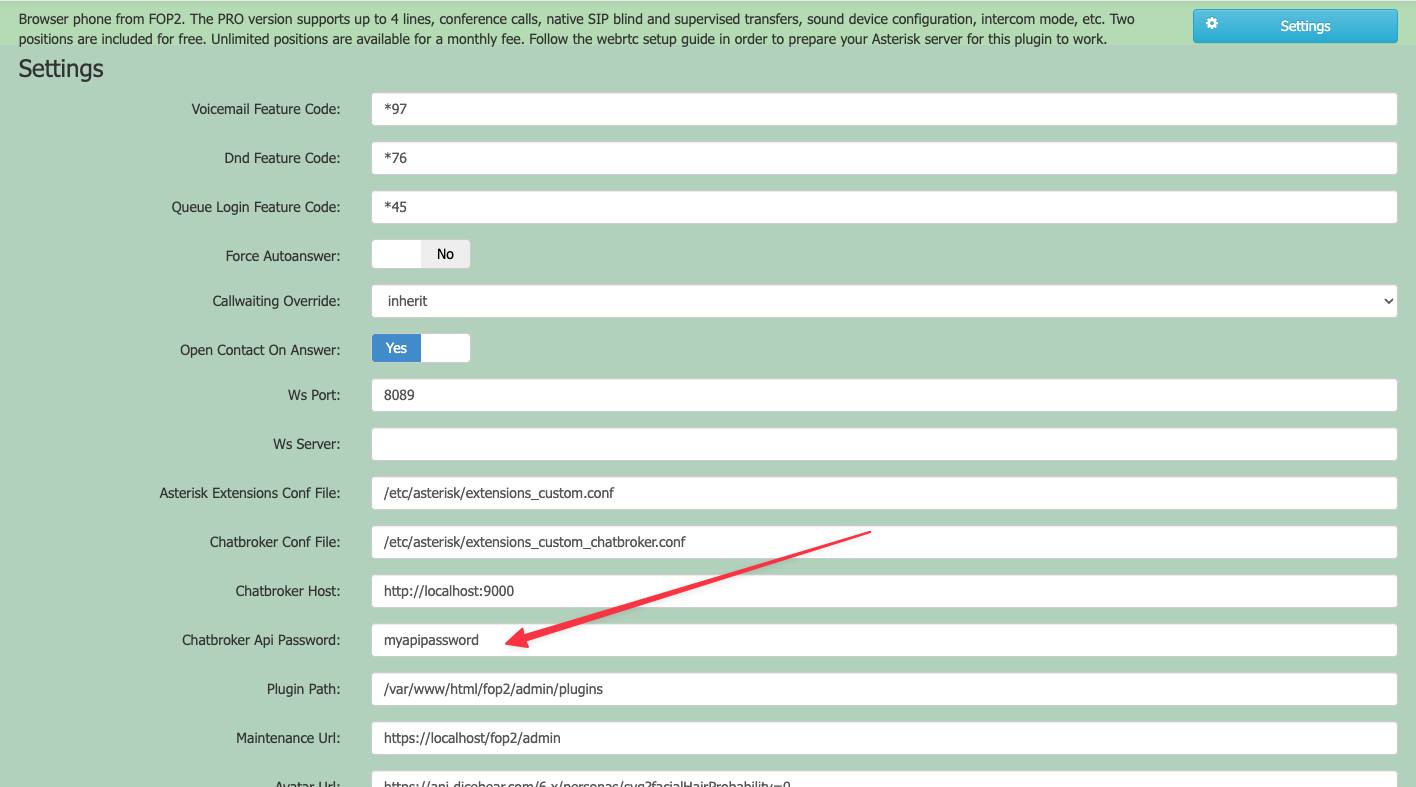
Finally click the Save button on the bottom of that form.